This reduces your hard disk space too. Archives can be made in either KGB or Zip format. And also you can secure them by a password. KGB Achiever is perfect to get an extraordinary compression results.
Tuesday, 28 February 2012
Compress huge files into least size
As you all know that even your Operating system has file compressing, but it compresses only to a certain limit. For minimum size file compressing, you can use KGB Achiever. It is a file archiever and data compression utility. We can compress 1 GB file into just few MB using KGB Archiver.
Monday, 27 February 2012
Update Facebook status in Blue Colour
Updating status is one of the unique feature in facebook. Having your status in a better way will make it to be liked by all and commented too. So, updating status is for the intention of making it to be a point of attraction to all.
1. Copy the following code in your status update text space.
3. Then, click on the “Post” button.
Already, I have shown you to update blank Facebook status in the
This evening, I am going to show you something different which will be a point of attraction.
How will it be if your Facebook status is in blue colour? No magic, just follow my steps.
1. Copy the following code in your status update text space.
@@[0:[100000513006559:1:WRITE YOUR TEXT HERE]]
@[100000513006559:]
2. Now replace “WRITE YOUR TEXT HERE” with your status. And also replace " 100000513006559" with your Facebook profile ID.
For example,
@@[0:[100000513006559:1:How will it be, if your Facebook status is in blue colour?]]
@[100000513006559:]
3. Then, click on the “Post” button.
HAPPY FACEBOOKING !!!
Saturday, 25 February 2012
Watch Blocked videos on YouTube
You may have come across many banned and blocked videos while working on YouTube. Now I’m gonna show you a simple trick to watch those videos.
Try this method
Go to the video you want to view.
The site will display that the video cannot be played in your country.
See in the address bar and you need to manipulate it a little bit.
Your URL will be like http://www.youtube.com/watch?v=QJO3ROT-A4E&ob=av2e
You just have to remove “watch?v=” and replace it with “v/”
Now your URL will look like this http://www.youtube.com/v/QJO3ROT-A4E&ob=av2e
Now run this URL and you will have access to the blocked video.
Go to the video you want to view.
The site will display that the video cannot be played in your country.
See in the address bar and you need to manipulate it a little bit.
Your URL will be like http://www.youtube.com/watch?v=QJO3ROT-A4E&ob=av2e
You just have to remove “watch?v=” and replace it with “v/”
Now your URL will look like this http://www.youtube.com/v/QJO3ROT-A4E&ob=av2e
Now run this URL and you will have access to the blocked video.
Note:This is a simple trick and it may not work always. Try your best!!!
Thursday, 23 February 2012
Change your Timeline into One row
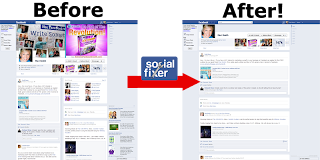
All the facebook users know that Facebook recently introduced Timeline. It’s little different from the usual views. It shows all the posts and the comments in two rows. Some people like this present view but some don't. I had mostly heard that this Timeline is difficult for most of the users.
We cannot remove Timeline permanently, but we can remove Timeline temporarily. Earlier too, I have shown you a way to Remove FB Timeline in
Use old Facebook without the Timeline (Enjoy with Firefox)
Timeline will be little bit easier if the two rows of Timeline posts be in one row.
Now I’m going to show you the way to change the Timeline into one row using “Social Fixer”.

For Mozilla Firefox fans
For Opera fans
For Safari fans
Then Login to your Facebook account.
Select "Settings" and click "Next".
Go to Timeline tab and select the "Display post in single column box".
“Social Fixer” will work in Google Chrome, Mozilla Firefox, Safari, and Opera, but it doesn't work in Internet Explorer.

How to change the Timeline into one row
Download the Social Fixer and install in your browser.
For Google Chrome fansFor Mozilla Firefox fans
For Opera fans
For Safari fans
Then Login to your Facebook account.
After that lots of setting will occur in Facebook.
Select "Settings" and click "Next".
Go to Timeline tab and select the "Display post in single column box".
The features of "Social Fixer"
- Can select the important post.
- Readied posts can be hidden.
- Theme can be changed.
- Oder posts can be auto recovered
Tuesday, 21 February 2012
Change Firefox into Google Chrome's appearance
Mozilla Firefox and Google chrome are the most famous web browsers used today. Each one of it has its own specialty and amazing features. If you like both the web browsers and if you are in real love with your Firefox browser than chrome, you can customize it to look like chrome with easy Add-on’s.
Chromifox Basic and Chromifox Extreme are the two add-on’s for Firefox which can change it into chrome’s appearance.
Click here to Install Chromifox Extreme
Sunday, 19 February 2012
Speak with your Google Chrome
Google chrome is used by everyone; it’s due to its outstanding features. It provides it's latest feature day to day. One of its funny, but important features is that Google chrome can speak using the extension called “Chrome Speak”.
This extension allows you to read out highlighted text loud. It allows you to overcome from complete laziness, bad eyesight, or just a desire to make your web browser to speak. Simply, you can listen to your web browser reading any important article while you are getting ready for work or if you don’t want crowd of people to gather around your computer screen.
The most important point in using “Chrome Speak” is it speaks clearly and in any language that you desire. And also you are able to customize the rate, pitch and volume of the reading voice.
Click here to Install Chrome Speak
Saturday, 18 February 2012
Gmail doesn't recognize Dots (..) as characters
Today most of us use Gmail, it is one of the email service provided by Google. Earlier too I have shown you few tricks on Gmail such as Use Gmail without Internet.
Nothing surprising, just try it with your Gmail account!!!
Yes, it doesn't recognize dots within username, so it doesn't matter even if you type dots as characters in your username.
You can access your Gmail account even if you type dot(s) within your username, but your password must be typed properly.
Suppose if your Gmail ID is fazlul@gmail.com, the messages sent to all below email addresses will be dropped in fazlul@gmail.com
fa.zl.ul.@gmail.com
f.a.z.l.u.l@gmail.com
faz.lul@gamil.com
f.az.l.ul@gmail.com
All the above addresses belong to the same person, so there is no any problem even if you type your username with dot(s).
Nothing surprising, just try it with your Gmail account!!!
Experience and leave your comments.
Speed up copying with "TeraCopy"
Slow copying speed is one of the most common complaints that we hear today. TeraCopy is a free application that allows you to copy and move files at the maximum speed.
TeraCopy can automatically check the copied files for errors by calculating their CRC checksum values.
TeraCopy allows you to copy files faster, pause and resume file transfer and Error recovery.

Click here to Download TeraCopy

Click here to Download TeraCopy
Tuesday, 14 February 2012
Check whether your Computer is a Male or a Female?
This is really a funny and amazing trick in which you can make your computer talk with you. Sometimes it will give you a Male voice and sometimes a Female voice.
How to do this?
Open a Notepad.
Type CreateObject("SAPI.SpVoice").Speak"hi i’m in love with you"
Save the notepad file as Computer Talk.vbs (make sure to choose “all files” to save as type option).
Close the notepad.
Now double click the newly created file to run it.
You will hear voice calling “hi I’m in love with you” :)
Remove Recent Documents in MS Office
People sometimes doesn't want to keep their recent documents in history to be shown on their MS office. This is for the reason to protect their important documents from other's sight.
What will be your reaction if I tell there is a way to remove the list of documents that you recently viewed from "Recent Documents"? Yes, Of course, there is a method.
Come on, let's see how to work on it.
Step 1
Go to Microsoft Office Word, Click on Office Button.
Step 2
Click on "Word Options" from Office button menu.
Step 3
When "Word Options" window opens, Click "Advanced".
Step 4
In "Advanced Options for working with Word" scroll down and enter a value of "0" in "Display" under "Show this number of Recent Documents" and then press "OK" from bottom.

Step 5
Now you can see that the list of document names which you viewed recently would be removed from"Recent Documents" list.

Now you can see that the list of document names which you viewed recently would be removed from"Recent Documents" list.

Finally, your important documents are safe!
Monday, 13 February 2012
Speed Up Firefox Browser easily
One of the most common web browser that we use today to surf the internet is Mozilla Firefox. We can complete our task easier if it works more faster. Earlier too, I have shown you a way to speed up Mozilla Firefox in
Increase Speed in Mozilla Firefox article.
In advance to this, now I am gonna show you to speed up Mozilla with a software called “Firefox Booster”.
Firefox Booster is a software application designed to increase the browsing speed of Mozilla Firefox. There are three different optimization modes, as follows:
- Fast, for networks with a speed of 512 kbps and up,such as DSL, cable or a faster connection
- Medium, for networks with a speed below 512 kbps.
- Slow for modems or even slower connections.
Click here to Download Firefox Booster
Note: It’s very important to make sure that Firefox is not running when hitting the “Optimize” button, otherwise Firefox Booster may have absolutely no effect.
Sunday, 12 February 2012
Speed up Internet 20% - 30% without any Software
Hi guys, today let me show you something really important in browsing internet.
Internet takes a prominent place in today’s fast moving world. There is no place without internet connection, but the problem that we all face today in using internet is SPEED. There are numerous software in internet itself to increase the speed of it, but how many of those really works?
How would you feel if I tell you a way to increase the speed without any software or expenses? There is a simple windows trick, I tried it and felt the difference, it made my internet connection 20% - 30% speedy, and then only I got the idea to share it with you all.
Let's see how to do :
Go to Start – Run or Click Windows key +R
Now type gpedit.msc
Next navigate to "Administrative Templates" --->
"Network" --->
"QoS Packet Scheduler"
In "QoS Packet Scheduler" double click on "Limit reservable bandwitdh".
"Limit reservable bandwitdh" box will appear.
Internet takes a prominent place in today’s fast moving world. There is no place without internet connection, but the problem that we all face today in using internet is SPEED. There are numerous software in internet itself to increase the speed of it, but how many of those really works?
How would you feel if I tell you a way to increase the speed without any software or expenses? There is a simple windows trick, I tried it and felt the difference, it made my internet connection 20% - 30% speedy, and then only I got the idea to share it with you all.
Let's see how to do :
Now type gpedit.msc
Click OK.
Now Local Group Policy will appear.
Next navigate to "Administrative Templates" --->
"Network" --->
"QoS Packet Scheduler"
In "QoS Packet Scheduler" double click on "Limit reservable bandwitdh".
"Limit reservable bandwitdh" box will appear.
In "Limit reservable bandwitdh" make it "Enabled"
Then set "Bandwidth limit: "0".
Click OK.
Now you have completed and when you browse the internet, definitely you will feel the difference. If this article is useful, put your comments and also share it with your friends through social networks.
Meet you in the next article :)
Wednesday, 8 February 2012
45000 videos views per Second in YouTube
YouTube is a video sharing website, which users can upload, view and share videos. YouTube receives 4 billion video views per day. That means more than 45000 videos a second. Even while you read this article, thousands of videos may be uploaded and downloaded.
- Every minute, 48 hours of videos are uploaded to YouTube.
- 800 million unique users visit YouTube each month.
- YouTube is available in local languages in 25 countries across 43 languages.
- Nearly 8 years of content is uploaded every day to YouTube.
- Content equivalent to 240,000 full-length films every week is uploaded.
- YouTube has thousands of full length movies.
- 10% of YouTube’s videos are available in HD.
Tuesday, 7 February 2012
Speed Up your PC without any Software
"msconfig" or "Microsoft System Configuration Utility" is designed to help you to troubleshoot problems with your computer.
This allows you to edit your start-up applications. “msconfig” gives access to services running on the computer and allows you to enable or disable them.
Steps to do Speed Up
- Start “Run”.
- Type “msconfig” in Run, then click Enter.
- After Opening MSCONFIG, go to Startup tab.
- Now deselect applications that you don’t want to run.
- After finishing press OK.
Use Gmail without Internet
Gmail offline allows us to read, respond to, and search without network access. So even if you are offline, you can open your web browser, go to Gmail.com and get to your mail just like you are used to.
Click here to Install offline Gmail
How to start Offline Gmail
- After installing, open a new tab in Chrome.
- In the new tab panel you will see a Gmail Offline Icon
- Click on the Icon, and then Offline Gmail will load.
- Now you can keep reading mails and also any new messages you compose will be sent out the next time you connect to internet.
Note: This is only available in Google Chrome.
Speed up PC to play High Quality Games
GBoost is a free windows game booster service, this allows you to temporarily speed up your PC by temporarily disabling some of the services that are not required for gaming. It’s completely safe with no permanent changes made to your PC.
You will find more responsive gaming!!!