RN-QQHFzQYtPGkUCfyu8eve2qf0

Friday, 8 March 2013

Download Facebook Touch for Windows 8

0 comments
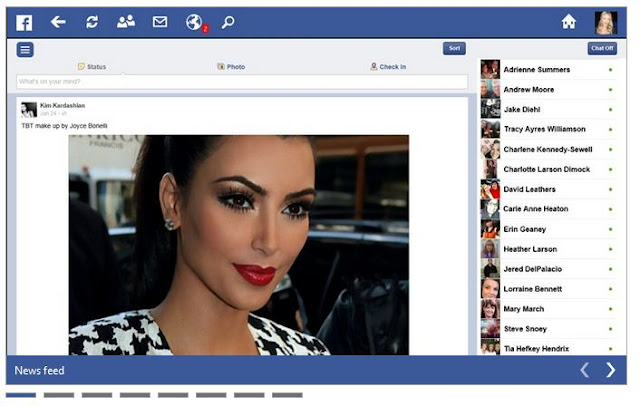
Windows 8 is one of the most expected product from Microsoft. It was released few month ago and running successfully on huge number of computers now. Recently Facebook touch app is updated for Windows 8 with some new features. Facebook touch app is designed as simple, fast and comprehensive.

Download Facebook Touch for Windows 8

You can have a touch optimized experience in your Windows 8 devices with this new updated Facebook touch app. This app consist some cool features. you can
access to your news feed,
view user profiles,
and you can chat with your Facebook friends with this app.

You can download the Facebook touch app for free of charge on Windows store. Facebook touch app supports on all builds of Windows 8.

Wednesday, 13 February 2013

All in One Software for Windows 8, One Click Installer for Popular Freeware Utilities

0 comments
Are you a Windows 8 users? Did you upgrade your Windows XP, Vista, 7 PCs to Windows 8 operating system? If you are a Windows 8 user, here I have a very useful suggestion for you. Mostly we install every basic software separately on our PC like web browsers, media player application. 


All in One Software for Windows 8, One Click Installer for Popular Freeware Utilities


Most of us don't know about Ninite.com site. The site offers us all the basic software's latest version for all Windows PCs. The most special thing on this site is user can install All the popular freeware with one installation. Ninite.com offers around 94 popular freeware latest version. You can get all the basic software' latest version here such as Google Chrome, Mozilla Firefox, VLC Media player, Flash player, Antivirus software etc....

How to Setup Ninite for Windows 8?

Go to official Ninite.com site.

Select Windows from the top left edge of the page. 


All in One Software for Windows 8, One Click Installer for Popular Freeware Utilities


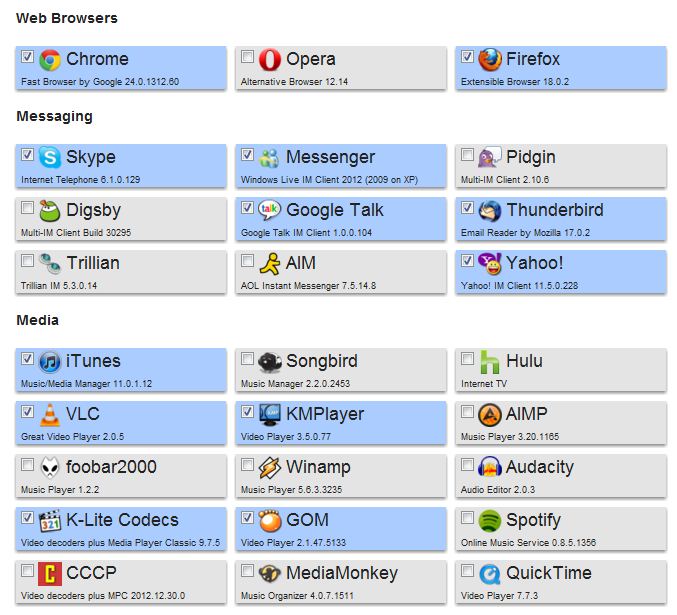
Now site will offer you lots of popular and basic freeware and open source apps' latest version in category vice like Web Browsers, Media, Security etc...

Now you have to put a tick on your favorite freeware which in the list.


All in One Software for Windows 8, One Click Installer for Popular Freeware Utilities


After selecting all the software, scroll down the mouse to bottom of the page and click on Get Installer.
All in One Software for Windows 8, One Click Installer for Popular Freeware Utilities

That's all, now all the freeware will start to download automatically.


All in One Software for Windows 8, One Click Installer for Popular Freeware Utilities


After all, your favorite apps will installed on your PC, it will create a shortcut for each and every apps on your desktop.

Wednesday, 6 February 2013

Download Winter Theme Pack for Windows 8

0 comments
"Themes makes desktop beautiful" due to this line, today I'm gonna share free themes pack. Before few months Microsoft released their new hybrid product worldwide. I don't want to tell the name, everyone know about it. It's Windows 8 operating system. So today I'm gonna make your PC more colorful with some most beautiful and attractive winter theme pack. 

Download Winter Theme Pack for Windows 8


These free themes make your Windows 8 desktop to an unique look and it will make your desktop more and more colorful on these winter season.


Monday, 14 January 2013

Windows 8 is So Easy, a Child will show you how to use it

1 comments
Windows 8 this is the most expected and hybrid product of Microsoft. Microsoft launched Windows 8 on Oct 26th of 2012. Since the launch, the most common problem for most of the users, that Windows 8 is not user friendly like Windows 7. Microsoft's Portugal branch has got many complains about Windows 8 that the new interface is difficult to learn. Here the answer for all the complaints from Microsoft. 


Windows 8 is So Easy, a Child will show you how to use it

Windows 8 is so easy, a child will show you how to work with Windows 8.


Monday, 17 December 2012

What You will Lose When You Upgrade Your PC to Windows 8 From Different Windows Versions

0 comments
Nowadays Windows 8 is the hot topic among the operating system. Daily huge amount of the Windows lovers are upgrading their PC to Windows 8 OS. This latest operating system consists many new features like Apps, touch screen supports etc. If you have not still upgrade your PC to Windows 8, click here to know how to upgrade PC to Windows 8. Before that let's have a small look on what you will loss when you upgrade PC to Windows 8 OS.


From windows 7
If you are upgrading your PC from Windows 7, there is no problem. All the personal files, apps and all the Windows settings will automatically get transferred to Windows 8 OS.

From Vista
If you are upgrading your PC from Vista, only Windows Settings and your Personal file will get transfer. And all the installed apps will never get transferred to Windows 8. You have to re-install the particular apps manually.

From XP 
If you are upgrading your PC from Windows XP, you will lose all the Windows settings and Apps. It only transfers the Personal files.

Windows 8 Release Preview
If you are upgrading your PC from Windows 8 Release Preview, it will transfer only your personal files. It will never transfer your windows settings and Apps etc...


Windows Consumer Preview or Windows Developer Preview 
When you transfer your PC to Windows 8 from Windows Consumer Preview or Windows Developer Preview. You will loss everything and you can get back all the personal files manually from Windows old folder.

Here I'll give a screen shot from Microsoft about this,


Thursday, 13 December 2012

Panda Cloud Anti-Virus 2.1 Free Version Released

0 comments
Panda Cloud Anti-virus released their new version of Panda Cloud Anti-virus 2.1. This is a cloud-based antivirus solution. Developers have released both pro and free version of Panda Cloud Anti-virus for all the users. This latest version got released with number of new features. In this list it has introduced a new feature called anti-exploit technology to behavioral protection and real-time protection for Windows 8 Store apps.


Panda Cloud Anti-Virus 2.1 Latest Version Released


Saturday, 24 November 2012

Download Free Avast AntiVirus 7.0, Now Supports Windows 8

0 comments
There are many free Anti-virus software available in internet. In this huge list we can introduce Avast as one of the best antivirus program. Avast is one of the best and free antivirus software to protect PCs from threats. Over 170 million computer users are using Avast as their Anti-virus to protect their PC against viruses and malware.
Download Avast AntiVirus 7.0 for Free, Now Supports Windows 8

Avast is the first free antivirus software which has been fully support with Microsoft's Windows 8 operating system and now this free version is offered in the Windows Store. I recommend this free Avast 7.0.1474 to all the Windows 8 users. If you're using Windows 8 as your OS, Avast is the best free antivirus software to your PC.

Saturday, 17 November 2012

How to Get Back Windows 7 Start Menu to Windows 8

0 comments
Everyone knows that Microsoft has officially released their new product worldwide. Most of the Windows fans have upgraded their PC to new operating system. If you have not still upgrade your PC to Windows 8, click here to Upgrade your PC to Windows 8 OS.

Windows 8 has been released with its new features and facilities. one of its feature in this is Windows 8 startup screen or Windows 8 start menu style. Most of the Windows 8 users don't like this start menu style, because Windows 8 start button is looking good and smart but not very easy to use it. So its not user-friendly when we compare with Windows 7 start menu.


How to Get Back Windows 7 Start Menu to Windows 8


But there is an option available to customize Windows 8 start menu to Windows 7 start menu style. This will make your stuffs more easy in Windows 8. Users can customize Windows 8 start menu to Windows 7 start menu style by using Stardock Start8. This tool helps you to bring back Windows 7 start menu on Windows 8 OS.

Click Here to Download Start8

After the installation completes, you can see start button in Windows 8, its similar to Windows 7 Start button. So now you can easily access to shut down, devices, music, videos, and documents with one click.


Friday, 16 November 2012

Top 10 Features of Windows 8 [Infographic]

0 comments
Have you all upgrade your PC to Windows 8 operating system? So how is the new OS? Today's Computer World article is about Windows 8. Let's have a short look on Windows 8 operating system's top 10 features. Here, the simply infographic shows you the top 10 features of Windows 8 OS.


The Top Ten Features of Windows 8

Source : Visual.ly

Friday, 9 November 2012

Download Amazing Windows 8 Themes

0 comments
Hi guys, Recently Microsoft has released their new product worldwide. It's Windows 8 operating system. So today I'm gonna make your PC more colorful with some most beautiful and attractive Windows 8 themes.

These free themes make your desktop computer or laptop to a unique look. And these themes are designed by Microsoft Windows developers. The Windows 8 themes are really looking cool and it will make your PC more and more colorful. All the themes are fully support with your Windows 7 Home Premium, Professional, Enterprise, Ultimate editions and Windows 8 PCs.


Download Amazing Windows 8 Themes
Most of the themes are designed with more than 7 images and also some of it contain more than 11 images. Don't wait !!! Download your favorite theme from Microsoft official site and make your PC colorful and attractive.


Monday, 29 October 2012

Download Genuine Windows 8 for Free (90 Day)

0 comments
We all know that Microsoft has released their hot product of Windows 8 this week. Are you interested in Windows 8? are you gonna purchase Windows 8 for your personal PC? 
Wait Wait !!!


Download Genuine Windows 8 for Free (90 Day)

Before purchasing Windows 8, Microsoft gives you a free trail of Windows 8 OS. This offer is a 90 days free trial of Windows 8 Enterprise edition for all the developers. Windows 8 Enterprise edition is available as ISO image in both 32 bit and 64 bit versions for following languages.
Chinese (Simplified)
Chinese (Traditional)
English
English (UK)
German
Korean
Japanese
French
Italian
Portuguese (Brazil) and Spanish.


How to Download Windows 8 for Free


Go to Microsoft site.

Scroll down the page, now you'll see a option to download 32 bit and 64 bit versions.


Download Genuine Windows 8 for Free (90 Day)

Now it requires you a windows live account. If you don't have an account, create a new account.

After that, give your details and download Windows 8 ISO images for free.

After downloads complete, install Windows 8 to your PC and enjoy with it's new features and facilities for the next 90 days.


Note:
This free trial edition will expire in 90 days and you can't upgrade it. While registering you have to login with Microsoft account and you should provide your name, e-mail ID and your country.

After the installation, you should active the product in online within 10 days gap. And if you want to go back to previous version of Windows, you should do a clean install from original installation media.


How to Upgrade your PC to Windows 8

0 comments
This week's top story is Microsoft's Windows 8 operating system. So today Computer World is gonna explain you that how to upgrade your PC to Windows 8 operating system. First of all check the minimum system requirement and other requirement  to run Windows 8 on a PC. Click Here to Know the Minimum System Requirement for Windows 8.


How to Upgrade your PC to Windows 8


How to upgrade your PC to Windows 8

Before buying Windows 8 operating system download the Windows 8 Upgrade Assistant tool and run it on your computer. This free tool will check your PC's specification to install Windows 8. Windows 8 Upgrade Assistant tool do a complete scan and gives you a report about PC hardware and apps.


If this free tool find that your PC can run Windows 8, it will recommend you which edition to buy and some more suggestion. You can purchase Windows 8 here


How to Upgrade your PC to Windows 8


Note : 
If you are upgrading your computer from Windows 7 operating system, all the files and apps will be automatically added to Windows 8. If you are upgrading your computer from other Windows versions, you have to re-install all the apps manually for Windows 8 OS.

After the upgrade of Windows 8 OS, you cant go back to previous version of Windows which you had on your PC. If you want to go back to previous OS, you have to re-install it again.

Minimum System Requirements to Run Windows 8 on your PC

0 comments
Finally Microsoft has released its hybrid product of Windows 8. Microsoft has officially launched Windows 8 on 26th of Oct. Have you all Windows lover upgrade your PC to Windows 8 OS? If not click here to know how to upgrade to windows 8. Before doing this, lets check whether your PC can run Windows 8 OS or not.


Minimum System Requirements to Run Windows 8 on your PC


Windows 8 system requirements and some other Additional requirements are here.

System Requirements 

Processor: 1 gigahertz (GHz) or faster with support for PAE, NX, and SSE2
RAM: 1 gigabyte (GB) (32-bit) or 2 GB (64-bit)
Hard disk space: 16 GB (32-bit) or 20 GB (64-bit)
Graphics card: Microsoft DirectX 9 graphics device with WDDM driver


Additional Requirements

To use touch, you need a tablet or a monitor that supports multitouch


To access the Windows Store and to download and run apps, you need an active Internet connection and a screen resolution of at least 1024 x 768

To snap apps, you need a screen resolution of at least 1366 x 768

Internet access (ISP fees might apply)

Secure boot requires firmware that supports UEFI v2.3.1 Errata B and has the Microsoft Windows Certification Authority in the UEFI signature database

Some games and programs might require a graphics card compatible with DirectX 10 or higher for optimal performance

Microsoft account required for some features

Watching DVDs requires separate playback software

Windows Media Center license sold separately

BitLocker To Go requires a USB flash drive (Windows 8 Pro only)

BitLocker requires either Trusted Platform Module (TPM) 1.2 or a USB flash drive (Windows 8 Pro only)

Client Hyper-V requires a 64-bit system with second level address translation (SLAT) capabilities and additional 2 GB of RAM (Windows 8 Pro only)

A TV tuner is required to play and record live TV in Windows Media Center (Windows 8 Pro Pack and Windows 8 Media Center Pack only)

Free Internet TV content varies by geography, some content might require additional fees (Windows 8 Pro Pack and Windows 8 Media Center Pack only)

Source: Windows Microsoft.com

Saturday, 20 October 2012

Top 7 Anti-Virus for Windows 8

0 comments
We all are waiting until Microsoft release Windows 8 officially. Already Microsoft has announced the Windows 8 launch date at Microsoft's annual sales meeting. Click here for more info.

No matter, what version of windows you are using, security is common thing for all the operating system. We should choose a suitable anti-virus for our PC. So in this post we will look on which are best anti-virus for Windows 8 OS. And also Microsoft has conformed that these anti-virus fully support with Windows 8.

Top 7 Anti-Virus for Windows 8


Top 7 Anti-Virus for Windows 8


4. McAfee


6. Panda


Saturday, 6 October 2012

Shortcut Keys Of Windows 8 Paint, Wordpad, Calculator Etc...

0 comments
We all know that recently Microsoft has released its much hyped product of Windows 8. Day to day large amount of Windows lovers are moving their PC to Windows 8 OS.

Windows 8 consist large number of shortcuts to make your stuff more easy. So today we'll have a short look on Windows 8 Paint, Wordpad, Calculator, Windows help viewer and Remote desktop connection shortcut keys. 

Shortcut Keys Of Windows 8 Paint, Wordpad, Calculator Etc...


Paint Shortcut Keys

F1  - Open Paint Help
F11  - View a picture in full-screen mode
F12  - Save the picture as a new file
Ctrl+A  - Select the entire picture
Ctrl+B  - Bold selected text
Ctrl+C  - Copy a selection to the Clipboard
Ctrl+E  - Open the Properties dialog box
Ctrl+G  - Show or hide gridlines
Ctrl+I  - Italicize selected text
Ctrl+N  - Create a new picture
Ctrl+O  - Open an existing picture
Ctrl+P  - Print a picture
Ctrl+R  - Show or hide the ruler
Ctrl+S  - Save changes to a picture
Ctrl+U  - Underline selected text
Ctrl+V  - Paste a selection from the Clipboard
Ctrl+W  - Open the Resize and Skew dialog box
Ctrl+X  - Cut a selection
Ctrl+Y  - Redo a change
Ctrl+Z  - Undo a change
Ctrl+plus (+)  - Increase the width of a brush, line, or shape outline by one pixel
Ctrl+minus (-)  - Decrease the width of a brush, line, or shape outline by one pixel
Ctrl+Page Up  - Zoom in
Ctrl+Page Down  - Zoom out
Alt+F4  - Close a picture and its Paint window
Right arrow  - Move the selection or active shape right by one pixel
Left arrow  - Move the selection or active shape left by one pixel
Down arrow  - Move the selection or active shape down by one pixel
Up arrow  - Move the selection or active shape up by one pixel
F10 or Alt  - Display key tips
Shift+F10  - Show the current shortcut menu


Wordpad Shortcut Keys

F1  - Open WordPad Help
F3  - Find the next instance of the text in the Find dialog box
F10  - Display keytips
F12  - Save the document as a new file
Ctrl+1  - Set single line spacing
Ctrl+2  - Set double line spacing
Ctrl+5  - Set line spacing to 1.5
Ctrl+A  - Select the entire document
Ctrl+B  - Make selected text bold
Ctrl+C  - Copy a selection to the Clipboard
Ctrl+D  - Insert a Paint drawing
Ctrl+E  - Align text center
Ctrl+F  - Find text in a document
Ctrl+H  - Replace text in a document
Ctrl+I  - Italicize selected text
Ctrl+J  - Justify text
Ctrl+L  - Align text left
Ctrl+N  - Create a new document
Ctrl+O  - Open an existing document
Ctrl+P  - Print a document
Ctrl+R  - Align text right
Ctrl+S  - Save changes to a document
Ctrl+U  - Underline selected text
Ctrl+V  - Paste a selection from the Clipboard
Ctrl+X  - Cut a selection
Ctrl+Y  - Redo a change
Ctrl+Z  - Undo a change
Ctrl+=  - Make selected text subscript
Ctrl+Shift+=  - Make selected text superscript
Ctrl+Shift+>  - Increase the font size
Ctrl+Shift+<  - Decrease the font size
Ctrl+Shift+A  - Change characters to all capitals
Ctrl+Shift+L  - Change the bullet style
Ctrl+left arrow  - Move the cursor one word to the left
Ctrl+right arrow  - Move the cursor one word to the right
Ctrl+up arrow  - Move the cursor to the line above
Ctrl+down arrow  - Move the cursor to the line below
Ctrl+Home  - Move to the beginning of the document
Ctrl+End  - Move to the end of the document
Ctrl+Page Up  - Move up one page
Ctrl+Page Down  - Move down one page
Ctrl+Delete  - Delete the next word
Alt+F4  - Close WordPad
Shift+F10  - Show the current shortcut menu


Calculator Shortcut Keys

F1  - Open Calculator Help
F2  - Edit the calculation history
Alt+1  - Switch to Standard mode
Alt+2  - Switch to Scientific mode
Alt+3  - Switch to Programmer mode
Alt+4  - Switch to Statistics mode
Alt+C  - Calculate or solve date calculations and worksheets
Ctrl+E  - Open date calculations
Ctrl+H - Turn calculation history on or off
Ctrl+L  - Press the MC button
Ctrl+M  - Press the MS button
Ctrl+P  - Press the M+ button
Ctrl+Q  - Press the M- button
Ctrl+R  - Press the MR button
Ctrl+U  - Open unit conversion
Ctrl+Shift+D  - Clear the calculation history
F9  - Press the +/- button
R  - Press the 1/× button
@  - Press the square root button
Del  - Press the CE button
Up arrow  - Navigate up in the calculation history
Down arrow  - Navigate down in the calculation history
Esc  - Cancel editing the calculation history
Enter  - Recalculate the calculation history after editing
F3  - Select Degrees in Scientific mode
F4  - Select Radians in Scientific mode
F5  - Select Grads in Scientific mode
Ctrl+B  - Press the 3√x button in Scientific mode
Ctrl+G  - Press the 10x button in Scientific mode
Ctrl+O  - Press the cosh button in Scientific mode
Ctrl+S  - Press the sinh button in Scientific mode
Ctrl+T  - Press the tanh button in Scientific mode
Ctrl+Y  - Press the y√x button in Scientific mode
D  - Press the Mod button in Scientific mode
I  - Press the Inv button in Scientific mode
L  - Press the log button in Scientific mode
M  - Press the dms button in Scientific mode
N  - Press the ln button in Scientific mode
O  - Press the cos button in Scientific mode
P  - Press the pi button in Scientific mode
Q  - Press the x^2 button in Scientific mode
S  - Press the sin button in Scientific mode
T  - Press the tan button in Scientific mode
V  - Press the F-E button in Scientific mode
X  - Press the Exp button in Scientific mode
Y  - Press the x^y button in Scientific mode
#  - Press the x^3 button in Scientific mode
;  - Press the Int button in Scientific mode
!  - Press the n! button in Scientific mode
(  - Press the ( button in Scientific mode
)  - Press the ) button in Scientific mode
F2  - Select Dword in Programmer mode
F3  - Select Word in Programmer mode
F4  - Select Byte in Programmer mode
F5  - Select Hex in Programmer mode
F6  - Select Dec in Programmer mode
F7  - Select Oct in Programmer mode
F8  - Select Bin in Programmer mode
F12  - Select Qword in Programmer mode
A-F  - Press the A-F buttons in Programmer mode
J  - Press the RoL button in Programmer mode
K  - Press the RoR button in Programmer mode
<  - Press the Lsh button in Programmer mode
>  - Press the Rsh button in Programmer mode
%  - Press the Mod button in Programmer mode


Windows Help viewer Shortcut Keys

F3  - Move the cursor to the search box
F10  - Display the Options menu
Home  - Move to the beginning of a topic
End  - Move to the end of a topic
Alt+left arrow  - Move back to the previously viewed topic
Alt+right arrow  - Move forward to the next (previously viewed) topic
Alt+A  - Display the customer support page
Alt+Home  - Display the Help and Support home page
Alt+C  - Display the Table of Contents
Ctrl+F  - Search the current topic
Alt+N  - Display the Connection Settings menu
Ctrl+P  - Print a topic


Remote Desktop Connection Shortcut Keys

Alt+Page Up  - Move between apps from left to right
Alt+Page Down  - Move between apps from right to left
Alt+Insert  - Cycle through apps in the order that they were started in
Alt+Home  - Display the Start menu
Ctrl+Alt+Break  - Switch between a window and full screen
Ctrl+Alt+End  - Display the Windows Security dialog box
Alt+Delete  - Display the system menu

All Shortcut Keys of Windows 8

0 comments
We all know that recently Microsoft has released its much hyped product of Windows 8.
Day to day large amount of Windows lovers are moving their PC to Windows 8 OS.

So today we'll have a short look on Windows 8 Shortcut keys. Windows 8 consist large number of shortcuts to make your stuff more easy.

All Shortcut Keys of Windows 8


List of Windows 8 Shortcut Keys

Some of the shortcut keys are used on Start screen and some other keys are used in desktop.

All Shortcut Keys of Windows 8


Ctrl+plus (+) or Ctrl+minus (-)  - Zoom in or out of apps pinned to the Start screen
Ctrl+scroll wheel  - Zoom in or out of apps pinned to the Start screen
Windows logo key+C - Open the Charms
Windows logo key+C  - Open the commands for the app
Windows logo key+F - Open the Search charm to search files
Windows logo key+H  - Open the Share charm
Windows logo key+I - Open the Settings charm
Windows logo key+J - Switch the main app and snapped app
Windows logo key+K - Open the Devices charm
Windows logo key+O  - Lock the device orientation
Windows logo key+Q  - Open the Search charm to search apps
Windows logo key+V  - Cycle through notifications
Windows logo key+Shift+V  - Cycle through notifications in reverse order
Windows logo key+W  - Open the Search charm to search settings
Windows logo key+,  - Temporarily peek at the desktop
Windows logo key+Z  - Show the commands available in the app
Windows logo key+spacebar  - Switch input language and keyboard layout
Windows logo key+Ctrl+spacebar  - Change to a previously selected input
Windows logo key+Tab  - Cycle through open apps (except desktop apps)

Windows logo key+Ctrl+Tab  - Cycle through open apps (except desktop apps) and snaps them as they are cycled

Windows logo key+Shift+Tab  - Cycle through open apps (except desktop apps) in reverse order

Windows logo key+PgUp  - Move the Start screen and apps to the monitor on the left (Apps in the desktop won’t change monitors)

Windows logo key+PgDown  - Move the Start screen and apps to the monitor on the right (Apps in the desktop won’t change monitors)

Windows logo key+Shift+period (.)  - Snaps an app to the left
Windows logo key+period (.)  - Snaps an app to the right


General Key Board Shortcuts

F1  - Display Help
F2  - Rename the selected item
F3  - Search for a file or folder
F4  - Display the address bar list in Windows Explorer
F5  - Refresh the active window
F6  - Cycle through screen elements in a window or on the desktop
F10  - Activate the menu bar in the active app
Alt+F4  - Close the active item, or exit the active app
Alt+Esc  - Cycle through items in the order in which they were opened
Alt+underlined letter  - Perform the command for that letter
Alt+Enter  - Display properties for the selected item
Alt+spacebar  - Open the shortcut menu for the active window
Alt+left arrow  - Back
Alt+right arrow  - Forward
Alt+Page Up  - Move up one screen
Alt+Page Down  - Move down one screen
Alt+Tab  - Switch between open apps (except desktop apps)

Ctrl+F4  - Close the active document (in apps that allow you to have multiple documents open simultaneously)

Ctrl+A  - Select all items in a document or window
Ctrl+C (or Ctrl+Insert)  - Copy the selected item
Ctrl+R (or F5)  - Refresh the active window
Ctrl+V (or Shift+Insert)  - Paste the selected item
Ctrl+X  - Cut the selected item
Ctrl+Z  - Undo an action
Ctrl+Y  - Redo an action
Ctrl+plus (+) or Ctrl+minus (-)  - Zoom in or out of apps pinned to the Start screen
Ctrl+scroll wheel  - Zoom in or out of apps pinned to the Start screen
Ctrl+ mouse scroll wheel  - Change the size of desktop icons
Ctrl+right arrow  - Move the cursor to the beginning of the next word
Ctrl+left arrow  - Move the cursor to the beginning of the previous word
Ctrl+down arrow  - Move the cursor to the beginning of the next paragraph
Ctrl+up arrow  - Move the cursor to the beginning of the previous paragraph
Ctrl+Alt+Tab  - Use the arrow keys to switch between all open apps
Ctrl with an arrow key+spacebar  - Select multiple individual items in a window or on the desktop
Ctrl+Shift with an arrow key  - Select a block of text
Ctrl+Esc  - Open the Start screen
Ctrl+Shift+Esc  - Open Task Manager
Ctrl+Shift  - Switch the keyboard layout when multiple keyboard layouts are enabled
Shift+F10  - Display the shortcut menu for the selected item

Shift with any arrow key  - Select more than one item in a window or on the desktop, or select text within a document

Shift+Delete  - Delete the selected item without moving it to the Recycle Bin first
Right arrow  - Open the next menu to the right, or open a submenu
Left arrow  - Open the next menu to the left, or close a submenu
Esc  - Cancel the current task


Dialog Box Shortcut Keys

F1  - Display Help
F4  - Display the items in the active list
Ctrl+Tab  - Move forward through tabs
Ctrl+Shift+Tab  - Move back through tabs
Ctrl+N (Number 1-9)  - Move to Nth tab
Tab  - Move forward through options
Shift+Tab  - Move back through options
Alt+underlined letter  - Perform the command or select the option for that letter
Enter  - Replace clicking the mouse for many selected commands
Spacebar  - Select or clear the check box if the active option is a check box
Backspace  - Open a folder one level up if a folder is selected in the Save As or Opendialog box
Arrow keys  - Select a button if the active option is a group of option buttons


Windows logo Key Shortcut Keys

Windows logo key+F1  - Open Windows Help and Support
Windows logo key  - Display or hide the Start menu
Windows logo key+B  - Set focus in the notification area
Windows logo key+C  - Open the Charms
Windows logo key+C  - Open the commands for the app
Windows logo key+D  - Display and hides the desktop
Windows logo key+E  - Open Computer
Windows logo key+F  - Open the Search charm and search file
Windows logo key+G  - Cycle through gadgets on the desktop
Windows logo key+H  - Open the Share charm
Windows logo key+I  - Open the Settings charm
Windows logo key+J  - Switch the main app and snapped app
Windows logo key+K  - Open the Devices charm
Windows logo key+L  - Lock your PC or switch users
Windows logo key+M  - Minimize all windows
Windows logo key+O  - Lock device orientation
Windows logo key+P  - Choose a presentation display mode
Windows logo key+Q  - Open the Search charm and search apps
Windows logo key+R  - Open the Run dialog box
Windows logo key+T  - Cycle through apps on the taskbar
Windows logo key+U  - Open Ease of Access Center
Windows logo key+V  - Cycle through notifications
Windows logo key+Shift+V  - Cycle through notifications in reverse order
Windows logo key+W  - Open the Search charm and search settings
Windows logo key+X  - Opens the Quick Link menu
Windows logo key+,  - Temporarily peek at the desktop
Windows logo key+Z  - Show the commands available in the app
Windows logo key+Pause  - Display the System Properties dialog box
Windows logo key+Ctrl+F  - Search for PCs (if you’re on a network)
Windows logo key+Shift+M  - Restore minimized windows on the desktop

Windows logo key+number  - Start the desktop app pinned to the taskbar in the position indicated by the number. If the app is already running, switch to that app.

Windows logo key+Shift+number  - Start a new instance of the desktop app pinned to the taskbar in the position indicated by the number

Windows logo key+Ctrl+number  - Switch to the last active window of the desktop app pinned to the taskbar in the position indicated by the number

Windows logo key+Alt+number  - Open the Jump List for the desktop app pinned to the taskbar in the position indicated by the number

Windows logo key+Ctrl+Shift+number  - Open a new instance of the desktop app located at the given position on the taskbar as admin

Windows logo key+Tab  - Cycle through open apps (except desktop apps)

Windows logo key+Ctrl+Tab  - Cycle through open apps (except desktop apps) and snaps them as they are cycled

Windows logo key+Ctrl+B  - Switch to the app that displayed a message in the notification area
Windows logo key+up arrow  - Maximize the desktop window
Windows logo key+down arrow  - Minimize the desktop window
Windows logo key+left arrow  - Maximize the desktop window to the left side of the screen
Windows logo key+right arrow  - Maximize the desktop window to the right side of the screen

Windows logo key+Home  - Minimize all but the active desktop window (restores all windows on second stroke)

Windows logo key+Shift+up arrow  - Stretch the desktop window to the top and bottom of the screen

Windows logo key+Shift+down arrow  - Restore/minimize active desktop windows vertically, maintaining width

Windows logo key+Shift+left arrow or right arrow  - Move a window in the desktop from one monitor to another

Windows logo key+spacebar  - Switch input language and keyboard layout
Windows logo key+Ctrl+spacebar  - Change to a previously selected input
Windows logo key+Enter  - Open Narrator

Windows logo key+PgUp  - Move the Start screen and apps to the monitor on the left (Apps in the desktop won’t change monitors)

Windows logo key+PgDown  - Move the Start screen and apps to the monitor on the right (Apps in the desktop won’t change monitors)

Windows logo key+Shift+period (.)  - Snaps an app to the left
Windows logo key+period (.)  - Snaps an app to the right
Windows logo key+Tab  - Cycle through opens apps (except desktop apps)

Windows logo key+Shift+Tab  - Cycle through opens apps (except desktop apps) in reverse order

Windows logo key+Ctrl+Tab  - Cycle through opens apps (except desktop apps) and snaps them as they are cycled

Windows logo key+/  - Initiate IME reconversion
Windows logo key+Alt+Enter  - Opens Windows Media Center
Windows logo key+plus (+) or minus (-)  - Zoom in or out (in Magnifier)
Windows logo key+Esc  - Exit Magnifier


File Explorer Shortcut Keys

Alt+D  - Select the address bar
Ctrl+E  - Select the search box
Ctrl+F  - Select the search box
Ctrl+N  - Open a new window
Ctrl+W  - Close the current window
Ctrl+mouse scroll wheel  - Change the size and appearance of file and folder icons
Ctrl+Shift+E  - Display all folders above the selected folder
Ctrl+Shift+N  - Create a new folder
Num Lock+Asterisk (*)  - Display all subfolders under the selected folder
Num Lock+plus (+)  - Display the contents of the selected folder
Num Lock+minus (-)  - Collapse the selected folder
Alt+P  - Display the preview pane
Alt+Enter  - Open the Properties dialog box for the selected item
Alt+right arrow  - View the next folder
Alt+up arrow  - View the parent folder
Alt+left arrow  - View the previous folder
Backspace  - View the previous folder
Right arrow  - Display the current selection (if it’s collapsed), or select the first subfolder
Left arrow  - Collapse the current selection (if it’s expanded), or select the parent folder
End  - Display the bottom of the active window
Home  - Display the top of the active window
F11  - Maximize or minimize the active window


Taskbar Shortcut Keys

Shift+click on a taskbar button  - Open a app or quickly open another instance of a app
Ctrl+Shift+click on a taskbar button  - Open a app as an administrator
Shift+Right-click on a taskbar button  - Show the window menu for the app
Shift+Right-click on a grouped taskbar button  - Show the window menu for the group
Ctrl+Click on a grouped taskbar button  - Cycle through the windows of the group


Ease of Access Shortcut Keys

Right Shift for eight seconds  - Turn Filter Keys on and off
Left Alt+Left Shift+PrtScn  - Turn High Contrast on or off
Left Alt+Left Shift+Num Lock  - Turn Mouse Keys on or off
Shift five times  - Turn Sticky Keys on or off
Num Lock for five seconds  - Turn Toggle Keys on or off
Windows logo key+U  - Open the Ease of Access Center


Magnifier Shortcut Keys

Windows logo key+plus (+) or minus (-)  - Zoom in or out
Ctrl+Alt+spacebar  - Preview the desktop in full-screen mode
Ctrl+Alt+D  - Switch to docked mode
Ctrl+Alt+F  - Switch to full-screen mode
Ctrl+Alt+I  - Invert colors
Ctrl+Alt+L  - Switch to lens mode
Ctrl+Alt+R  - Resize the lens
Ctrl+Alt+arrow keys  - Pan in the direction of the arrow keys
Windows logo key+Esc  - Exit Magnifier


Narrator Shortcut Keys

Space or Enter  - Activate current item
Tab and arrow keys  - Move around on the screen
Ctrl  - Stop reading
Caps Lock+D  - Read item
Caps Lock+M  - Start reading
Caps Lock+H  - Read document
Caps Lock+V  - Repeat phrase
Caps Lock+W  - Read window
Caps Lock+Page Up/Down  - Increase or decrease the volume of the voice
Caps Lock+plus (+) or minus (-)  - Increase or decrease the speed of the voice
Caps Lock+spacebar  - Do default action
Caps Lock+left or right arrows  - Move to previous/next item
Caps Lock+F2  - Show commands for current item
Press Caps Lock twice in quick succession  - Turn Caps Lock on or off
Caps Lock + Esc  - Exit Narrator


Narrator touch Shortcut Keys

Tap once with two fingers  - Stop Narrator from reading
Tap three times with four fingers  - Show all Narrator commands (including the ones not in this list)
Double-tap  - Activate primary action
Triple-tap  - Activate secondary action
Touch or drag a single finger  - Read what’s under your finger
Flick left/right with one finger  - Move to next or previous item
Swipe left/right/up/down with two fingers  - Scroll
Swipe down with three fingers  - Start reading on explorable text